How to Set Up a Waitlist in 90 Seconds (Visual Walkthrough)
A screenshot-by-screenshot walkthrough of setting up a real waitlist page in 90 seconds. Name, pitch, goal, background, and the one survey question that pays for itself.
Posted by
 Rouzbeh
Related reading
Giving a Support Chatbot Tools, Not Just Documents
A bot that answers from your docs is a weekend. A bot that can read and change a customer's own account is a different problem, and almost none of it is the AI part.
Answering Support When You Are the Whole Company
Support is the highest-quality research channel a small product has, and the fastest way to burn out if you treat it as an obligation. How to answer, what to automate, and how to say no.
The Pricing Page: What to Put On It, and What to Leave Off
Picking the number is one problem, presenting it is another. Plan names, the free tier decision, trials and card-up-front, annual billing, and the things founders add that quietly cost them customers.
The waitlist tools you have used before probably had a three-page setup wizard, a “connect your domain” step you did not need, and a signup form that asked for nothing more than an email. This is what a modern indie waitlist setup looks like instead: one page, four fields, optional survey builder, done in ninety seconds. Every screenshot below is a real capture of the actual lighthouse.build/create page.
Table of contents
Step 0. Open the page
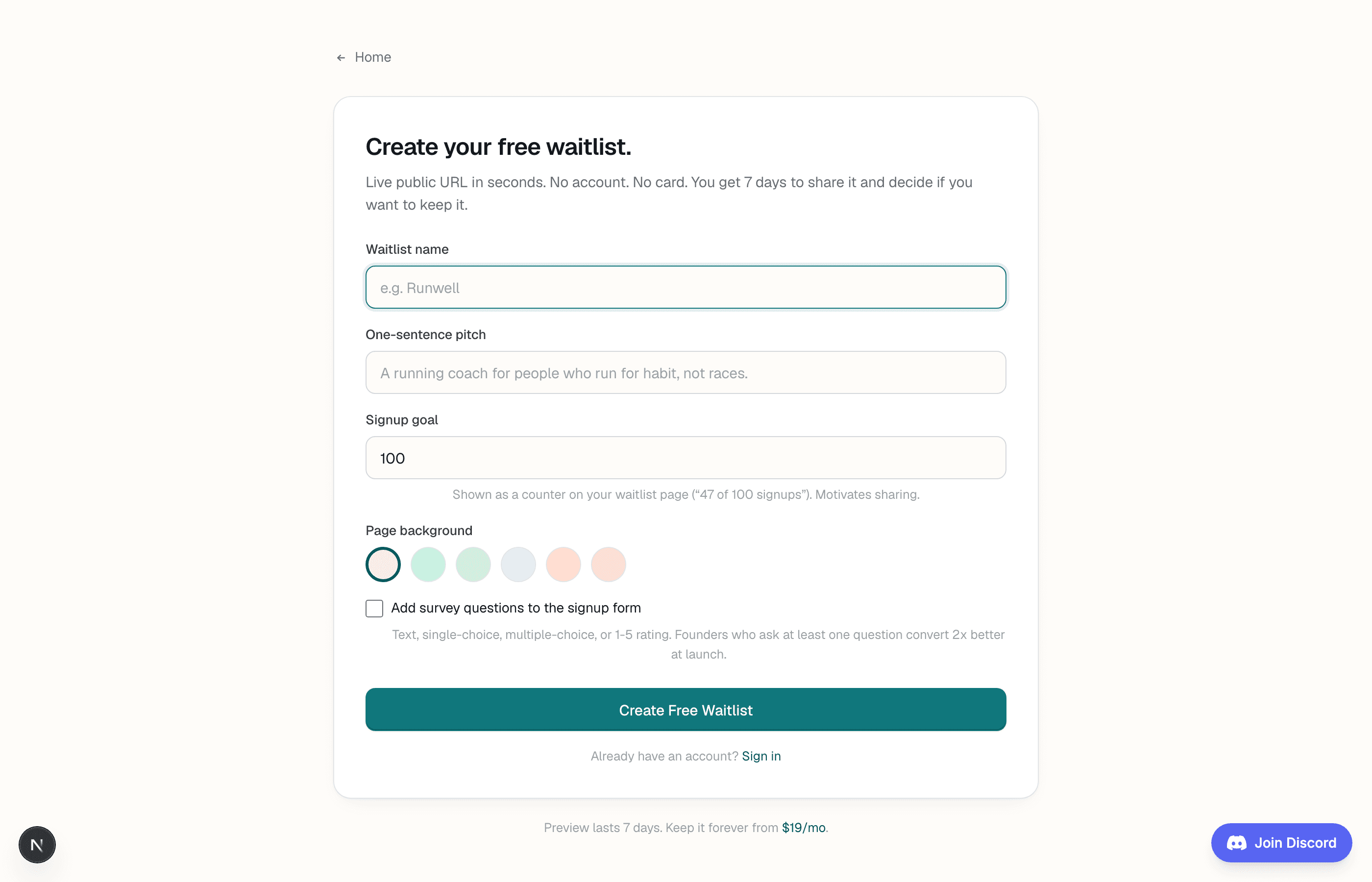
Go to lighthouse.build/create. No account, no card, no popup asking for a company size. The whole flow is on one screen.
Step 1. Name, pitch, goal (30 seconds)
Three fields, three sentences. This is the whole content of your waitlist page.
- Waitlist name. Two to four words. The product name if you have one; a working title if you do not (nobody sees this until you share the link).
- One-sentence pitch. Solution category for a specific audience with a specific pain. If it takes two sentences, come back to it after step 4. Rough is better than delayed.
- Signup goal. Start at 100. The number becomes the visible counter (“47 of 100 signups”), and 100 is the smallest number that still feels ambitious to share on X.
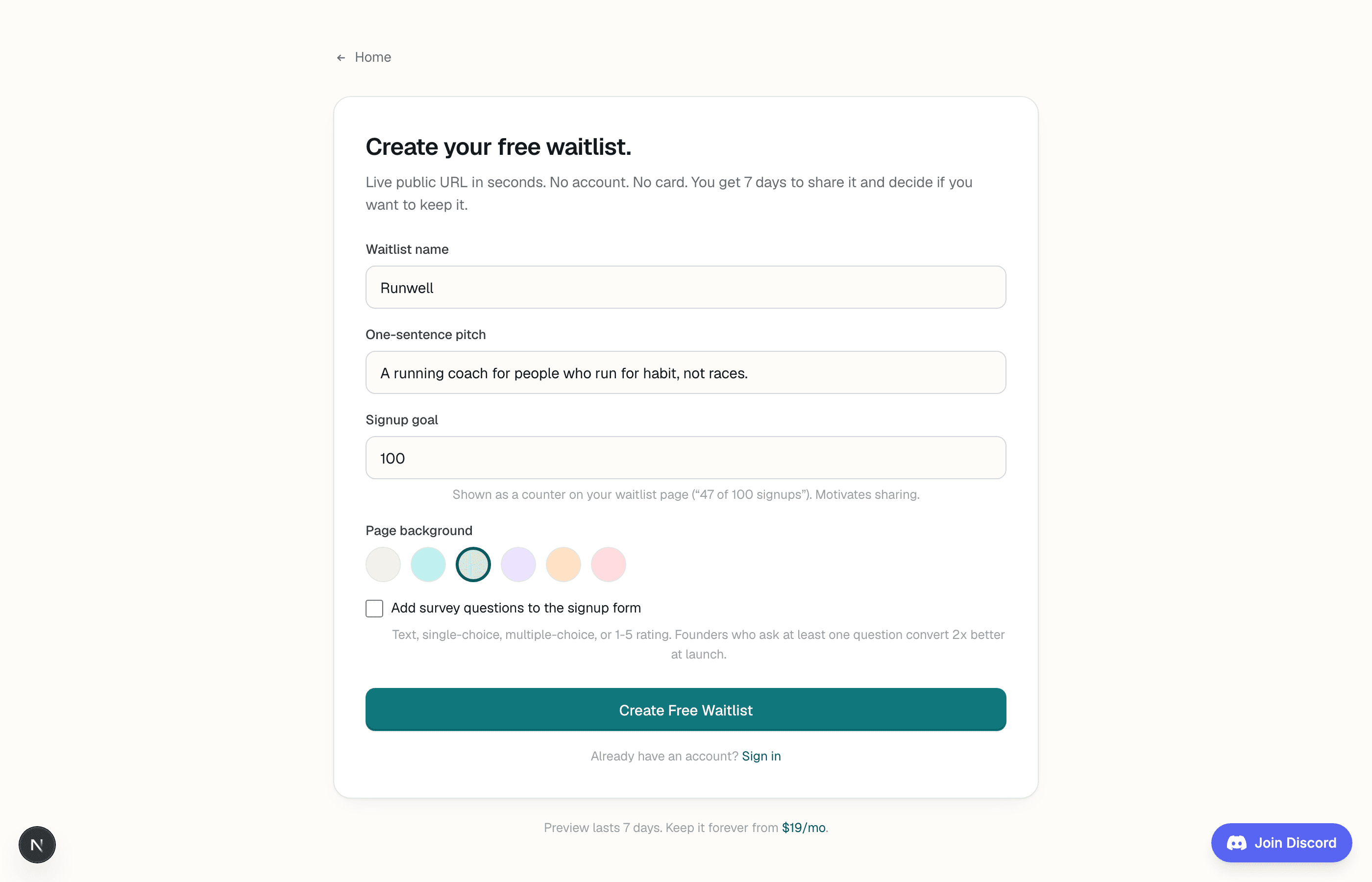
Filled in, it looks like this:
Step 2. Pick a background (5 seconds)
Six accent colors: ivory, teal, sage, lavender, peach, rose. Whichever fits the product mood. This is the biggest visual identity decision you make on the page and it takes one click. In the screenshot above, sage is selected; everything on the public page (progress bar, button, focus rings) will match.
Do not spend more than five seconds on this. You can change it any time after the first ten signups tell you whether the pitch works.
Step 3. Add the one survey question (30 seconds)
Tick the “Add survey questions to the signup form” checkbox. A survey builder appears with an “Add question” button. Add one question. Just one. The founders who ask at least one question at signup time convert roughly twice as well at launch, and every extra question past number two drops conversion by another ten percent.
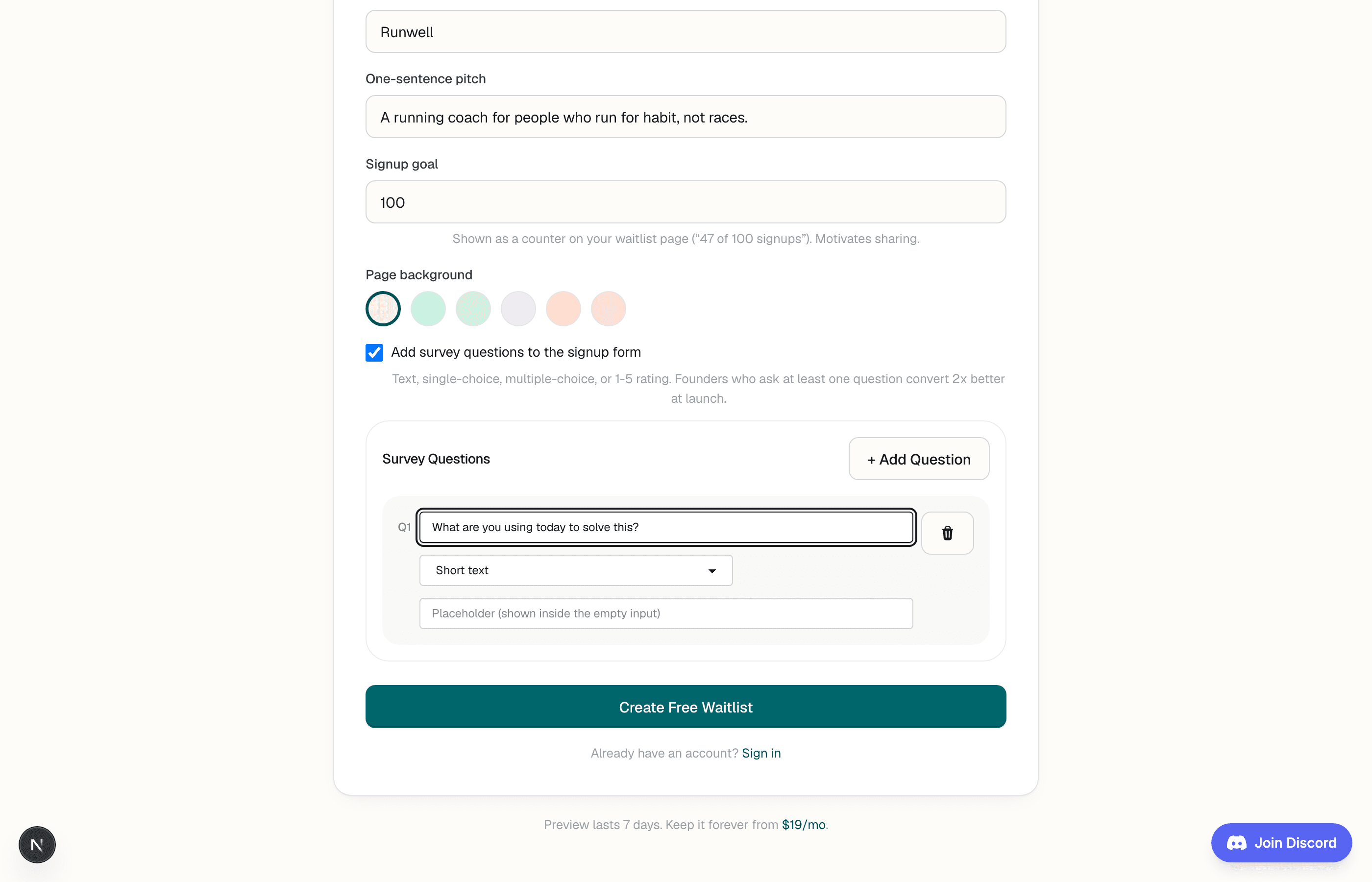
The question above (“What are you using today to solve this?”) is the one that pays for itself across every launch I have shipped. The answers name your real competitors, in the exact phrasing your customers use to talk about them. Nothing else on your discovery list beats that.
The four question types on the dropdown: short text (open answers, best for competitor-naming), single choice (radio buttons, best for known segments), multiple choice (checkboxes, best for feature interest), and 1 to 5 rating (scale buttons, best for urgency questions like “how badly do you need this today?”).
Step 4. Publish and share (20 seconds)
Click Create Free Waitlist. You land on a live public page at lighthouse.build/preview/[slug] with your name, pitch, the goal counter at 0, the survey questions on the signup form, and a share block. Copy the URL. Post it on X with the one-sentence pitch and a screenshot of the page.
Total elapsed: around 90 seconds if you knew the pitch, around three minutes if you were still writing it while typing. Either way, you now have a shareable public URL and the first 10 signups will tell you whether the pitch landed.
The free preview accepts up to 25 signups and stays live for 7 days. If the pitch works, upgrade to keep the URL forever and unlock the full dashboard. If it does not, you spent two minutes.
What you can safely skip
Everything below is optional at setup time. Come back for it after the first ten signups.
- Custom domain. DNS setup is a two-hour rabbit hole that adds zero to the first ten signups. Ship on the subdomain, add DNS later once you upgrade.
- Custom email templates. The confirmation email out of the box is fine for the warmup stage. Write your launch email at launch time, not now.
- Multiple survey questions. One at signup, two at most. Save the deeper survey for a follow-up email a week after signup, when the person is already opted in and warm.
- Team invites. Solo founders do not need collaborators to run a waitlist. Add someone else once you have real signups to sort through.
Frequently asked questions
Do I need to make an account to try it?
No. The /create page is anonymous. You get a live public URL immediately and 7 days to see if the pitch works before paying. If you decide to keep it, the account is created at that point (through Stripe, magic-link sign-in).
What happens after 7 days?
The pending waitlist expires and is deleted 24 hours later by a cleanup job. If you paid before that window closes, the page and every signup get migrated into your new account automatically on your first dashboard visit.
Can I edit the page after publishing?
Yes on the paid dashboard. On the free preview you edit by re-creating (delete + create fresh); it is only intended as a short validation preview. Once you upgrade you can rename, re-pitch, change background, add questions, and edit any answers.
What if the pitch is not ready?
Publish anyway. A rough pitch on a live page teaches you more in a week than a polished pitch in a document teaches you in a month. The first five signups will show you which words landed and which did not.
Is 90 seconds a marketing number?
The number is honest as long as you know the pitch already. The screenshots above were captured live off the actual page; the typing time is what a normal typist takes on a normal keyboard. If you are still writing the pitch, plan for three to four minutes; if you are iterating on the pitch, plan for ten.