How to Connect Your Waitlist to Claude with MCP (2026)
What MCP is, why it matters for indie founders, and how to connect a waitlist to Claude Desktop, Cursor, or ChatGPT in one line of config so you can ask questions about your signups in plain English.
Posted by
 Rouzbeh
Related reading
Giving a Support Chatbot Tools, Not Just Documents
A bot that answers from your docs is a weekend. A bot that can read and change a customer's own account is a different problem, and almost none of it is the AI part.
Answering Support When You Are the Whole Company
Support is the highest-quality research channel a small product has, and the fastest way to burn out if you treat it as an obligation. How to answer, what to automate, and how to say no.
The Pricing Page: What to Put On It, and What to Leave Off
Picking the number is one problem, presenting it is another. Plan names, the free tier decision, trials and card-up-front, annual billing, and the things founders add that quietly cost them customers.
You have 200 people on a waitlist and a survey answer attached to each one. Somewhere in there is the reason they signed up, the tool they are trying to replace, and the price they would pay. Getting at it usually means exporting a CSV, opening a spreadsheet, and reading until your eyes glaze over.
MCP removes that step. You point Claude, Cursor, or ChatGPT at your waitlist once, then ask questions in plain English and the model reads the live data itself. This post explains what MCP actually is, what it is not, and how to wire a waitlist up to it in about a minute.
Table of contents
What MCP is, in plain English
MCP stands for Model Context Protocol. It is an open standard for letting an AI client talk to an outside system. Think of it as a USB port for AI apps: the app provides the socket, a service provides the plug, and anything that speaks the protocol can connect without custom glue on either side.
Before MCP, giving a model access to your data meant one of two bad options. Either you exported a file and pasted it into the chat, which goes stale the moment anyone new signs up, or you wrote a custom integration against a REST API, which is a real project. MCP is the third option: the service publishes a small set of tools, the client discovers them automatically, and the model decides when to call them.
The important consequence for a founder is that the data is live. You are not asking the model about a snapshot you uploaded last Tuesday. You are asking it about the row that was written thirty seconds ago.
Why it matters if you run a waitlist
A waitlist with survey answers is a small, messy, text- heavy dataset. That is exactly the shape of problem language models are good at and spreadsheets are bad at. “How many signups?” is a spreadsheet question. “What are the three things people keep complaining about, in their own words?” is not.
Once the waitlist is connected, the questions you can ask change shape. You stop asking about counts and start asking about meaning: which segment is most urgent, which objection comes up most often, which ten people should get a personal email before launch day.
Connecting a waitlist in one line of config
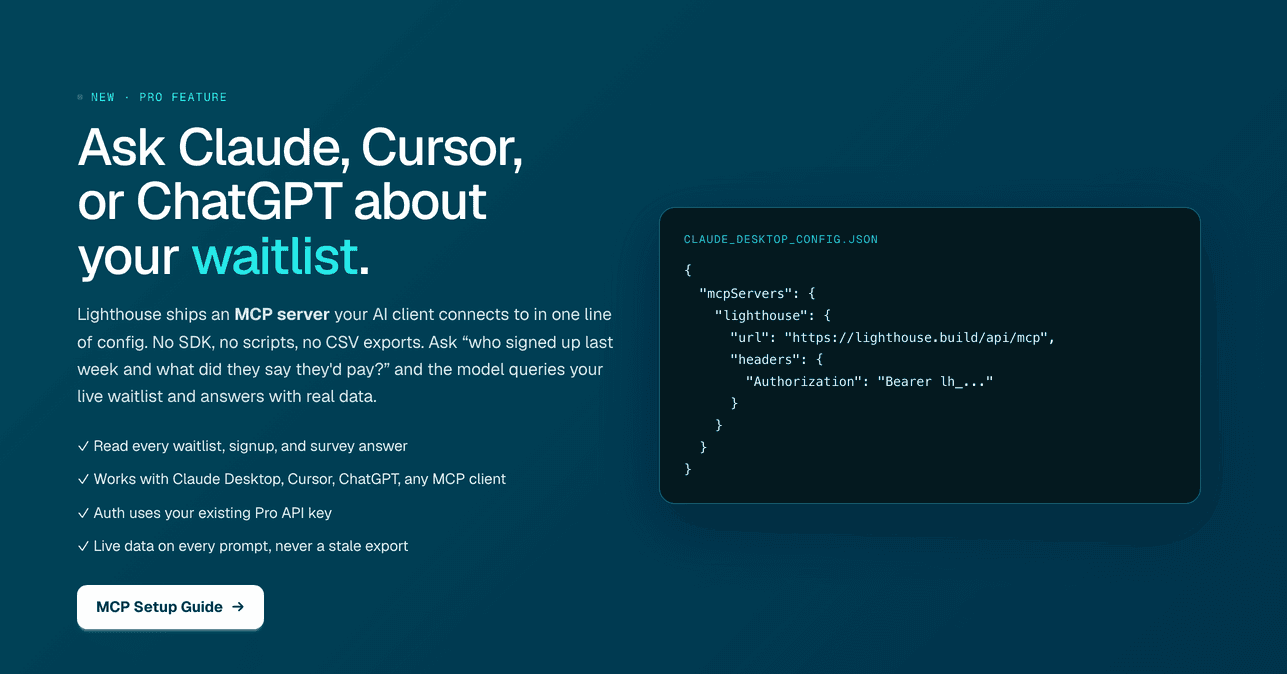
Lighthouse ships an MCP server, so there is nothing to install and no SDK to learn. The whole setup is three steps.
1. Generate an API key
In the dashboard, open Settings → API keys and create one. Name it after the client you plan to use so you can revoke it later without guessing. The key shows once, so copy it now. MCP reuses the same keys as the REST API rather than inventing a second credential to manage.
2. Add the server to your client
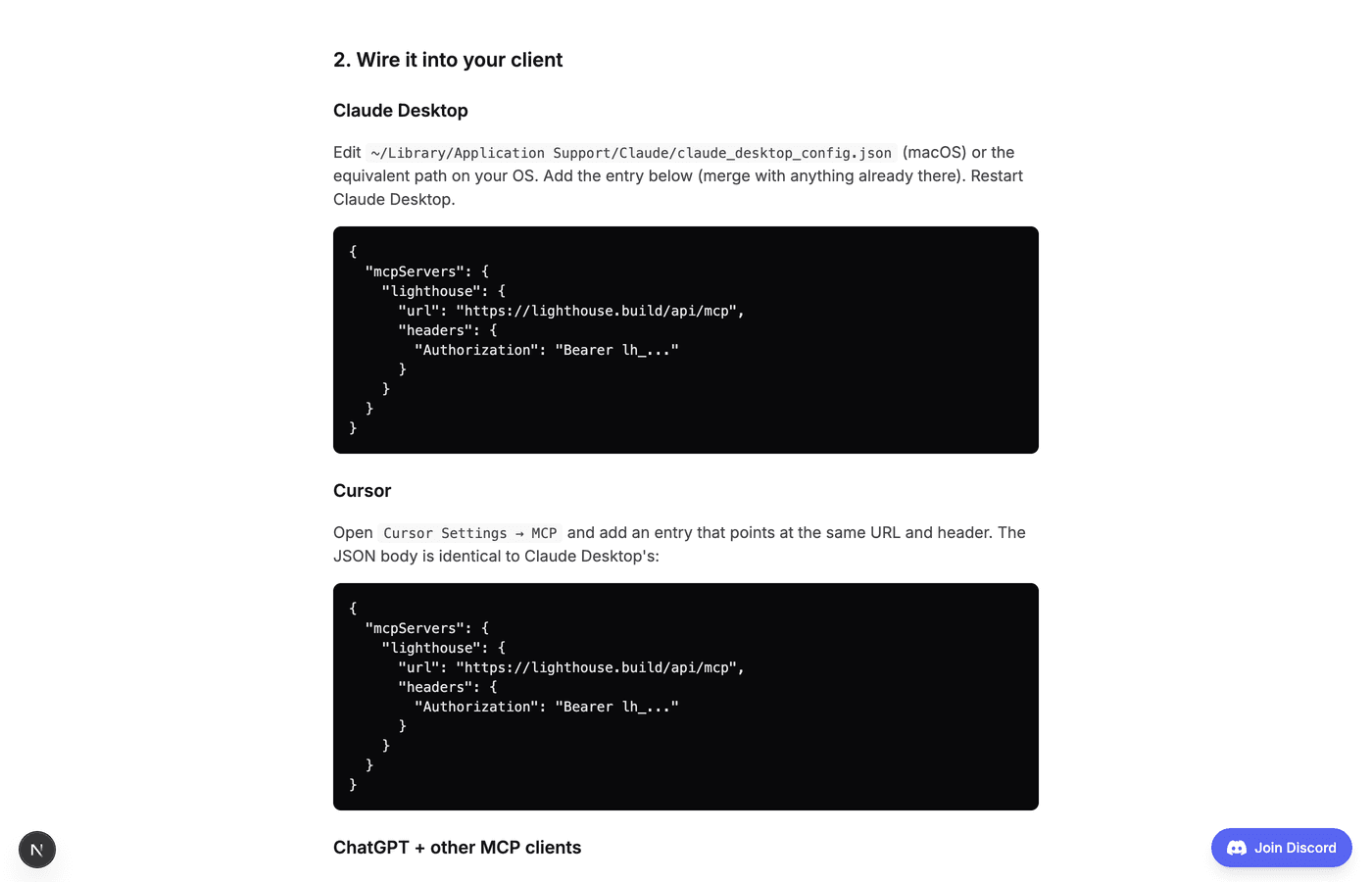
For Claude Desktop, edit claude_desktop_config.json and add the block below, then restart the app. Cursor uses the same JSON under its MCP settings, and any other MCP-aware client takes the same two fields: a URL and an authorization header.
{
  "mcpServers": {
    "lighthouse": {
      "url": "https://lighthouse.build/api/mcp",
      "headers": {
        "Authorization": "Bearer lh_..."
      }
    }
  }
}
3. Ask a question
Start with something you already know the answer to, so you can tell it is working. “What waitlists do I have on Lighthouse?” should come back with your real list names and signup counts. From there the interesting questions are the ones you could not answer before.
What the model can actually read
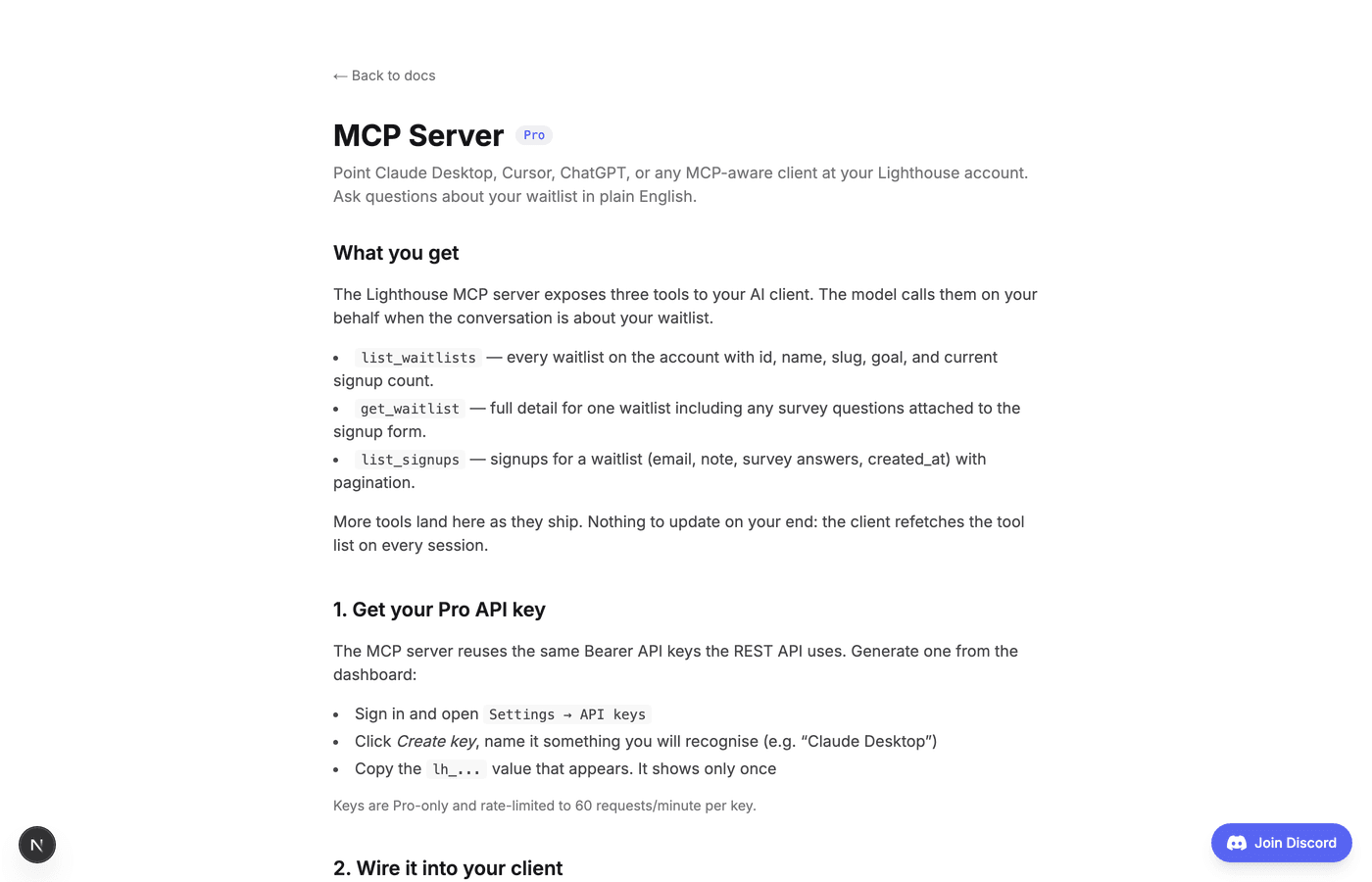
An MCP server exposes named tools. The client fetches the list on connect, so you never update anything on your end when new ones ship. Lighthouse currently exposes five, all read-only.
- list_waitlists returns every waitlist on the account with its id, name, slug, goal, and current signup count.
- get_waitlist returns one waitlist in full, including the survey questions attached to its signup form. This is how the model knows what each answer means.
- list_signups returns the signups for a waitlist: email, optional note, survey answers, and the date, with pagination for long lists.
- search_signups returns the signups whose answers are closest in meaning to a query, each with a similarity score. Semantic rather than keyword, so “switching from a spreadsheet” matches someone who wrote about Excel falling apart.
- search_feedback does the same over in-product feedback submissions, which is how you find out whether a bug has been reported before.
One caveat on the last two. They return the top matches, not every row, so they answer “show me the ones like this” and not “how many people said this”. Counting still belongs to list_signups, which returns everything.
The model chooses which to call and in what order. Ask about themes in one waitlist and it will typically call list_waitlists to find the id, then get_waitlist to learn the questions, then list_signups to read the answers. You do not orchestrate any of that.
Five prompts worth running on day one
- “Group my signups by what tool they said they use today, and count each group.” This is your real competitor list, in your customers' words rather than your assumptions.
- “What are the three most common pain points across all survey answers? Quote one real answer for each.” The quotes matter: they are landing page copy you did not have to write.
- “Which signups sound most urgent, and why?” These are the people to email personally before launch day.
- “Draft a launch email for the people who said price was their main concern.” Segmenting by answer beats one generic announcement every time.
- “Compare signups from the last 7 days against the 7 before. What changed?” Useful right after a launch post, when you want to know whether the new traffic is a different audience.
If you want the same analysis without wiring up a client, Lighthouse also has one-click AI insights in the dashboard that read every answer and return pain themes and audience segments. MCP is for when you want to keep asking follow-up questions in your own words.
What it cannot do, and why that is deliberate
All five tools are read-only. There is no create, no edit, no delete, and no send. A model cannot email your list, change a waitlist, or remove a signup, because those tools do not exist to call.
That is a deliberate choice rather than a missing feature. The failure mode of a write-capable AI integration is unbounded: a misread instruction becomes an email blast to everyone you spent three months collecting. The failure mode of a read-only one is a wrong answer you can check.
Two other limits worth knowing. Every tool call verifies ownership, so the server only ever returns rows from your own account. And the key is rate limited to 60 requests a minute, shared across REST and MCP, which no normal conversation gets close to.
Frequently asked questions
Do I need to be a developer?
No. You copy a key, paste a JSON block into a config file, and restart the app. If you can edit a text file you can do this. The full walkthrough with copy-paste blocks is in the MCP setup guide.
Which clients work?
Claude Desktop, Cursor, ChatGPT, and any other client that speaks streamable-HTTP MCP. The config is the same everywhere: a URL and an authorization header.
Is my signup data sent anywhere new?
Only to the AI client you connect, and only what a tool call returns in response to something you asked. There is no background sync and no ambient upload. Revoking the key in the dashboard cuts access immediately.
How is this different from the REST API?
Same data, same key, different consumer. The REST API is for code you write. MCP is for a model you talk to. Pick REST when you are building a feature, MCP when you are trying to understand your own signups.
What does it cost?
The MCP server is on the Pro plan at $29 a month, which also includes AI insights, the REST API, custom domains, and unlimited campaign sends. Every plan starts with a 7-day free trial. You can also create a free waitlist first and connect it later.